
X Icon Changer - Change Icons
ASTER PLAYPersonalization
4.313.21K Reviews
- Version
- 4.5.6
- Installs
- 50.00M
- Age Rating
- Everyone
Screenshots
Our Review of X Icon Changer - Change Icons
 Analysis by Appyee
Changing an app icon sounds like a tiny customization job, but it can become surprisingly confusing when the new shortcut does not appear where expected, the original icon remains visible, or the result looks different from the preview. I spent time with X Icon Changer - Change Icons to see whether it makes this process genuinely easier. My overall impression is that it is a useful personalization tool for Android users who want a more coordinated home screen, provided they understand what it changes and what it cannot control.
Developed by ASTER PLAY, this free app focuses on creating customized app shortcuts rather than redesigning an entire phone interface. It works on devices running Android 6.0 or later, and its Everyone age rating makes it approachable for a broad audience. The current version is 4.5.6, while the app’s popularity is reflected in a 4.3 average from around 673 thousand ratings and more than 50 million installs.
The important distinction is that an icon change is usually a shortcut-level change, not a replacement of the installed application itself. That explains several common surprises: the original icon may still be present, the new icon may have a small shortcut marker depending on the launcher, and the result can vary between phone brands. Once I treated it as a shortcut creator instead of a system-wide icon engine, the workflow made much more sense.
What makes the first setup confusing
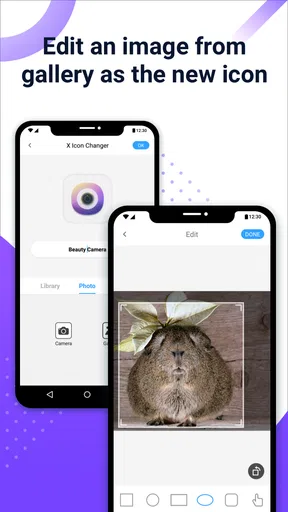
The first obstacle is choosing the right visual source. X Icon Changer lets me work toward a personalized icon, but the quality of the final result depends heavily on the image I use. A square image with the subject centered usually behaves better than a wide photograph or a busy screenshot. If the important part sits near an edge, the launcher may crop it and leave me with an icon that looks unbalanced.
This is especially noticeable when I use photographs. A picture that looks attractive in the gallery can become too dark, too crowded, or impossible to recognize at icon size. I get better results from simple symbols, flat illustrations, initials, or images with one clear subject. This is not a limitation unique to one phone; small home-screen icons simply do not preserve every detail from a large image.
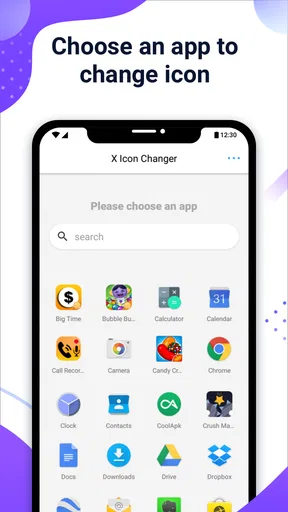
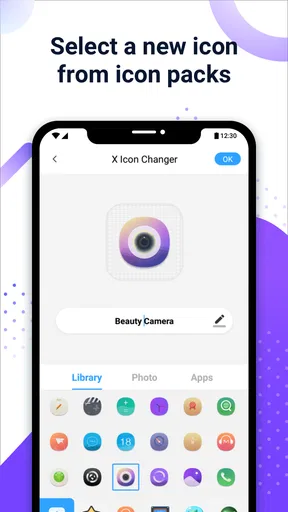
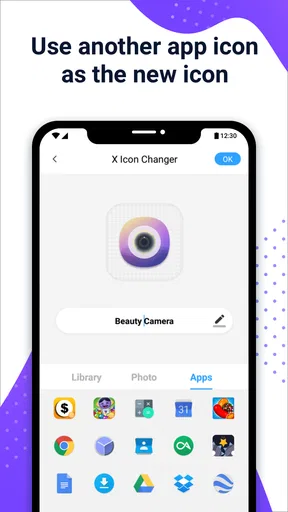
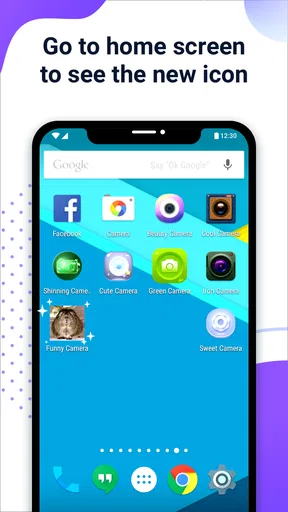
Another point that catches people is the difference between selecting an app and placing its shortcut. The usual flow involves choosing the application to customize, selecting an image or icon style, and then confirming the shortcut creation. The final step may lead to a new item on the home screen rather than silently altering the existing item in place. If I look only for the old icon to transform, I can easily assume the process failed.
Home-screen behavior also depends on the launcher supplied by the phone manufacturer. Some launchers accept a newly created shortcut immediately. Others may place it on another page, require an available space, or display it with their own visual treatment. That means a missing icon is not automatically evidence that X Icon Changer malfunctioned.
Checks I make before creating an icon
I start by clearing a small space on the home screen. This sounds obvious, but it removes one of the easiest causes of failure: there is simply nowhere for the new shortcut to go. I also check the other home-screen pages and any folders, because a shortcut can be added somewhere different from the page I was viewing.
Next, I decide whether I want a decorative image or a practical replacement. For a daily-use app such as messaging or maps, recognition matters more than artistic detail. I usually keep the original app’s familiar color or symbol somewhere in the design. For a private folder, a themed image can be more creative because I do not need to identify it instantly while moving quickly through the home screen.
I also prepare the image before opening the customization flow. Cropping it in advance, removing unnecessary background detail, and keeping the important shape near the center saves time. This is one of the more useful habits I developed with the app: the tool can help create the shortcut, but it cannot rescue an image that was never suitable for a tiny icon.
Because the app is free, it is easy to try a few designs without committing money at the start. It does include in-app purchases priced at $1.99 per item, so I pay attention to any optional purchase prompt and decide whether the available free workflow already meets my needs. For occasional customization, I would not assume I need to buy anything simply because an extra option is presented.
A reliable workflow for everyday customization
My preferred method is to customize one app first rather than attempting a whole theme in one sitting. I select a frequently used application, choose a clean image, create the shortcut, and then test it from the home screen. This small trial reveals how my particular launcher handles the result before I spend time preparing a complete set.
After the shortcut appears, I tap it and confirm that it opens the intended application. This check is worth doing before removing anything from the home screen. A visually correct icon is not enough; the shortcut needs to launch the right destination. If I am working with several apps that have similar names, this simple test prevents an attractive but misleading layout.
For a themed arrangement, I use a consistent visual rule. One option is to give every icon the same background color while preserving different symbols. Another is to use related images for a small group, such as work tools or entertainment apps. Mixing unrelated photographs often looks less polished than expected, even when each individual image is appealing.
There is also a practical reason to avoid changing every icon at once: troubleshooting becomes much harder. If one shortcut does not appear, I know which recent action to investigate. If I create a dozen at the same time and the home screen becomes cluttered, it is difficult to tell whether the issue is placement, the launcher, an unsuitable image, or a mistaken app selection.
How I recover when the shortcut seems missing
When a newly created icon is not visible, I first check every home-screen page and folder. I then look for an empty space by moving an existing item temporarily. If the launcher has a search or app-management view, I use that to distinguish between an app that was not added and a shortcut that was placed somewhere unexpected.
If the icon appears but the original remains, I do not delete the original immediately. I test the new shortcut first. Once I know it opens the correct application, I can remove the old home-screen item without uninstalling the application itself. This distinction is important: removing an icon from the home screen is not the same as removing the app from the phone, but I still prefer to verify each step rather than relying on appearance alone.
When the image looks cropped, I recreate the shortcut with a simpler source rather than repeatedly changing launcher settings. A centered logo or symbol is usually a better diagnostic image than a detailed photograph. If that works, the earlier problem was probably the source image rather than the app’s basic shortcut process.
If a shortcut opens the wrong application, I delete that shortcut and begin again from the application selection stage. I avoid trying to repair the wrong item by changing its picture repeatedly. The image and the destination are separate decisions, and checking them separately makes recovery faster.
Restarting the phone can also be a reasonable general check when the home screen has not refreshed correctly, but I treat it as a later step rather than the first response. I prefer to confirm placement, available space, and the selected application before restarting. That keeps the troubleshooting focused and avoids turning a simple customization task into a vague cycle of resets.
When the phone, launcher, or image is the real issue
Not every disappointing result is caused by X Icon Changer. Android home screens are not identical, and manufacturer launchers can apply different rules to shortcuts, labels, spacing, and visual badges. If the same shortcut behaves differently on two phones, that difference may come from the launcher rather than from the image workflow.
The launcher can also affect how much control I have after creation. Some home screens make it easy to move, rename, or group shortcuts. Others are more rigid. In that situation, the app may successfully create the item while the phone makes the final arrangement awkward. Users who want deep control over grids, icon packs, widgets, and system-wide appearance may be happier with a dedicated launcher instead.
Image quality is another outside factor. A transparent graphic may look excellent in one icon style and oddly framed in another. A dark image can disappear against a dark wallpaper. Before blaming the app, I compare the icon against the actual wallpaper and reduce visual complexity. A customization that looks good in a preview can still fail as a usable home-screen marker.
There is also a difference between changing the home screen and changing every place where an app appears. X Icon Changer is most useful when my goal is a personalized home-screen arrangement. It is not the right choice if I expect the application drawer, settings screens, notification areas, or every system reference to adopt the same artwork automatically. Those broader changes normally belong to the launcher or operating system theme layer.
Who will get the most from it
I think the app suits people who enjoy small visual adjustments without wanting to replace their entire launcher. It is particularly handy for a themed study setup, a discreet work profile on the home screen, a seasonal arrangement, or a child-friendly layout where recognizable pictures are easier to identify than standard symbols.
One realistic use case is a phone used for both work and personal tasks. I can give work-related shortcuts a restrained color scheme and keep personal services visually separate. The result does not create a new user profile or change app permissions; it simply makes the home screen easier for me to scan. That modest scope is also its strength because I can experiment without rebuilding the whole phone interface.
It can help people who rely on visual memory rather than app names. A custom image of a notebook, camera, or calendar can act as a quick visual cue. However, I would keep the image strongly associated with the app. If every shortcut becomes an abstract pattern, the home screen may look stylish while becoming slower to use.
Users who should skip it are those looking for automatic, comprehensive theming. If the priority is one-click changes across the entire device, a system theme tool or full launcher with icon-pack support is likely a better match. I would also skip it for a phone used in a business environment where consistent standard icons make support and training easier.
How it compares with the usual alternatives
The simplest alternative is to keep the default icons. That option is faster, more predictable, and usually better for someone who values instant recognition over appearance. X Icon Changer becomes worthwhile when the home screen itself is part of the user experience and I am willing to spend a little time arranging it carefully.
A full custom launcher offers more control over icon size, grid layout, gestures, widgets, and app-drawer presentation. It is the stronger choice for a complete redesign, but it also changes more of the phone and may require a longer setup. X Icon Changer is less ambitious and therefore easier to use for a few targeted shortcuts.
Icon-pack support built into a launcher can produce a more consistent result than individual image selection. It is usually better for someone who wants dozens of icons with one unified visual language. The trade-off is that I have less freedom to use personal photographs, custom artwork, or unusual one-off images. X Icon Changer is more flexible for individual choices, while an icon pack is often cleaner for a complete set.
Manual shortcuts or automation tools can sometimes create similar home-screen entries, but they may be less approachable for people who do not want to manage technical workflows. The appeal here is the direct, visual nature of the task: choose an app, choose an appearance, and inspect the result. That convenience is balanced by the launcher-dependent behavior I have already mentioned.
Small habits that improve the result
I keep the original icons in a temporary folder until I have tested all new shortcuts. This gives me a safe fallback and prevents accidental removal from turning into a search through the app drawer. Once the arrangement is stable, I decide whether the original home-screen items are still needed.
I also take a screenshot of the finished layout before experimenting further. That gives me a visual reference if I later change wallpapers, move items, or create a second theme. It is a simple way to preserve a design without assuming the app itself manages a complete backup of the home screen.
For readability, I avoid putting similar custom images next to each other. Two nearly identical portraits or abstract symbols can make the shortcuts hard to distinguish. I use contrast deliberately: different shapes, background colors, or image subjects help me identify the destination faster than decorative consistency alone.
Finally, I customize the apps I actually open. Changing a rarely used icon may be fun, but it does not improve daily navigation. Starting with the dock or first home-screen page gives the effort a practical payoff and makes it easier to judge whether the visual change is helping rather than merely adding decoration.
My practical verdict
X Icon Changer - Change Icons is a focused personalization app rather than a complete home-screen replacement. I like it because it lets me make selective changes without forcing me to redesign the entire Android experience. The free entry point, accessible age rating, and broad device compatibility make it easy to try, while the large Android user base suggests that the shortcut approach works for many people.
My main reservation is not the idea itself but the expectation it can create. The result depends on the launcher, the image, the available home-screen space, and whether I understand that a new shortcut may coexist with the original icon. Users who expect a system-wide transformation may find the process limited or inconsistent. Users who want a few personal, visual shortcuts will probably find the scope sensible.
The strongest reason to install it is practical customization: separating work and personal apps, making important tools easier to spot, or giving a small group of shortcuts a personal style. The strongest reason to choose something else is the need for a complete icon system with uniform coverage and deeper layout controls.
For me, the app earns a recommendation with one condition: start with a single shortcut, use a simple centered image, test it from the home screen, and only then build a larger theme. If that workflow matches what you want, ASTER PLAY’s tool is a convenient way to personalize Android without taking over the whole launcher. If you want every system surface to change together, look toward a full launcher or theme solution instead.
Verdict
Strengths of X Icon Changer - Change Icons
- Lets you personalize app icons without rooting your Android device.
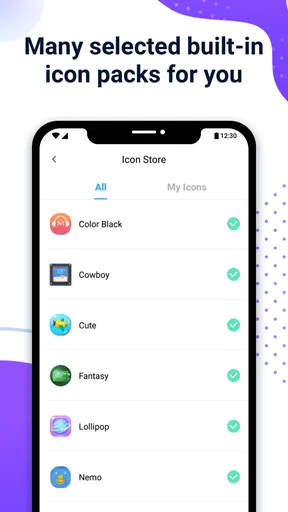
- Includes a large collection of built-in icon styles and themes.
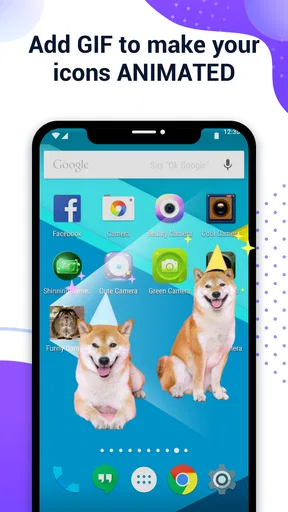
- Supports custom images from your gallery for unique shortcuts.
- Simple setup process suitable for users with little technical experience.
- Useful for matching icons to wallpapers, launchers, or seasonal themes.
Limitations of X Icon Changer - Change Icons
- Creates shortcuts instead of permanently replacing the original app icons.
- Some devices may show shortcut badges or extra transition effects.
- Certain icon packs and customization options may require payment.
- Ads can make browsing and editing less convenient in the free version.
- Changes may need to be recreated after uninstalling or resetting the launcher.
Similar Picks in This Category
View All
Microsoft SwiftKey AI Keyboard
SwiftKey4.3

Wallpapers
Google LLC4.1

Zedge™ Wallpapers & Ringtones
Zedge4.7

Yandex Browser with Alice AI
Direct Cursus Computer Systems Trading LLC4.3

Ringtone Maker:create ringtone
Big Bang Inc.4.7

Fonts Keyboard
Fonts Keyboard3.9
Frequently Asked Questions
What is X Icon Changer - Change Icons used for?
X Icon Changer - Change Icons is a customization tool that lets you replace the appearance of app icons on your phone’s home screen. You can usually select an image from your gallery, use an icon pack, or choose an available design, then create a shortcut with the new artwork. It is useful for matching a theme, organizing apps visually, or giving your device a more personal look.
Does X Icon Changer actually replace the original app icon?
In most cases, the application creates a customized shortcut rather than permanently changing the original icon inside the installed app. The original icon may remain visible in the app drawer or settings, while the new shortcut appears on the home screen. Depending on your Android launcher and system version, you may also see a shortcut badge or a brief transition when opening the selected application.
Can I use my own photos or custom images as icons?
Yes, the app is generally designed to let you choose images from your phone and use them as shortcut icons. Before selecting a photo, it is best to crop it into a square format and use a clear, high-resolution image so it remains recognizable at a small size. Access to your gallery may be requested, and the exact editing options can vary by device.
Is X Icon Changer - Change Icons free to download and use?
The app can typically be downloaded at no initial cost, but free use may include advertisements, optional purchases, or limitations on certain designs and features. Pricing and available tools can change with updates, so reviewing the current store listing is recommended before downloading. Also check whether any subscription is offered and confirm its renewal terms before accepting a purchase.
Will customized icons work on every Android phone?
Compatibility depends on the Android version, the phone manufacturer, and the launcher being used. The shortcut method works on many popular devices, but some systems may display notification badges, shortcut labels, or other visual differences. If an icon does not appear correctly, try adding it again, checking launcher permissions, or using the phone’s default home-screen launcher instead of a heavily customized third-party option.
